
Using Data Services Templates
You can use .xls format templates to populate data for Data Services queries. Download the required template, populate it with query data, then upload the template to query the data feed as described below.
 Download a template file
- On the Data Services main page, select the data feed you want to query.
- Click the Service Template link to display the Service Template form:
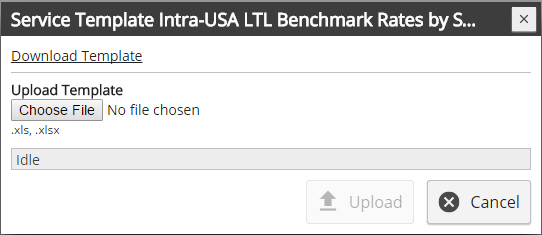
- Click the Download Template link.
- A default template file name is set and the Excel .xls file is saved to your default download location. If your browser is set up to prompt with download options, you can select the file location and edit the name as required. Click Save.
Populate a template file
Once you have downloaded the service template file, you can populate the file with query values.
- Open the template file using Excel.
- Enter required and optional values for the query records and save the file.
Upload a template file
Once you have populated the template file with data, you can upload it to query the data feed. Results are returned automatically.
- On the Data Services main page, select the module you want to query.
- Click the Service Template link to open the Service Template form.
- Depending on your browser, click Choose File or Browse... then navigate to the file, select the file and click Open.
- Click Upload. The data is uploaded into the query area and results are returned in the Results section of the page
Last modified: Thursday January 21, 2021