
Importing from SAP ECC system
The SAP Import  action allows you to import data directly from a SAP ECC system; the imported data is written to a new table.
Data Guru support for the this action ended with the 35.0.0 release. You can continue to use existing actions and set up additional actions. However, Coupa will no longer provide support, fixes or updates for this action going forward.
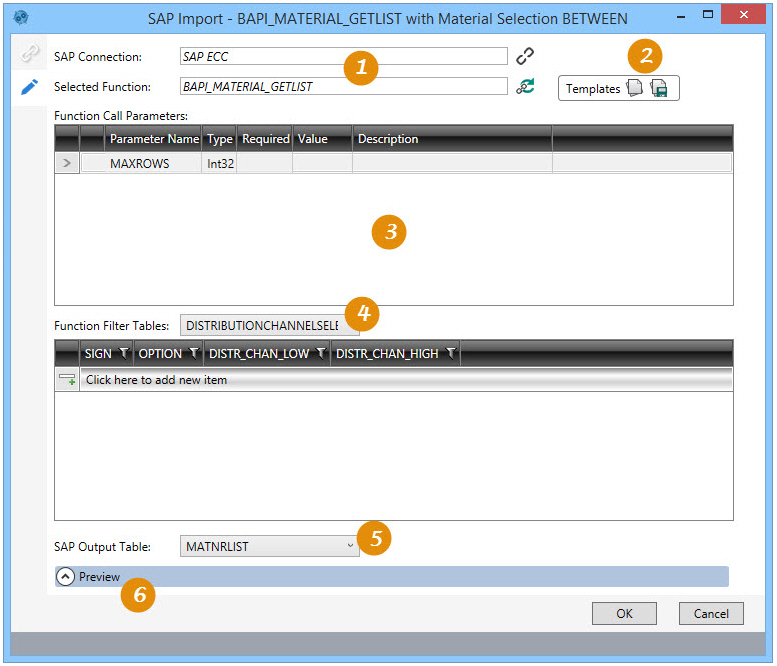
On the Configuration tab:
-
Review the selected SAP connection and function.
-
Apply a function template to the action or save the action as a template.
-
Review the sortable list of parameters.
-
Create filters to limit output from selected tables.
-
Select the output table.
-
Preview the output table.
Possible applications include:
- Import data using a pre-defined function module (RFC).
- Import data using a SAP BAPI.
Import from SAP
- Drag the SAP Import icon onto the design surface.
-
On the Connections tab
 , enter a Name and a Description to identify the action, then specify the input SAP and output database table options:
Input -
- For SAP Connection, select the SAP from which the data is being imported, or choose New SAP Connection to establish a connection to another SAP, and then choose the Selected Function.
- Indicate the relevant information on the appropriate tabs.
- Search – Use function groups to search for available SAP functions to access BAPIs and RFCs.
- Documentation – Retrieves available function documentation from SAP.
- Function Interface – Displays input field and output table meta data.
- Function Call Parameters – Provides detailed meta data on function input parameters.
Output -
- For Database Connection, specify the database to which the data is being imported, then enter a Table Name for the new table being created.
- Indicate whether the output table should be deleted following successful execution of the macro containing the import action.
- On the Configuration tab
 , make the necessary field adjustments and choose a SAP output table:
- Optionally, click one of the Templates icons to apply an existing function template to this action or create a new function template based on this configuration.
- SAP Connection – Displays the name and indicates the status of the SAP connection.
- Selected Function – Displays the name of the function selected on the Connections tab.
- Function Call Parameters – Data input table for function parameters.
- Function Filter Tables – Select a table, then click where indicated to add a new item to the list to limit the data returned from that table when selected as an output.
- Choose a SAP Output Table.
- Use Preview to display the data with the options you have selected.
- Group columns by dragging column headers.
- Click Last error to view the last SQL error.
- Set the Grid Maximum.
- Click Refresh to redisplay the rows; you can also select Enable auto refresh to refresh the screen following each change to the arrangement of the rows.
Last modified: Thursday December 19, 2024