
Export Connections
Data Guru allows you to export connections. When you export a connection, it is saved to a file appended with the .dglib extension. Exported connection files can then be imported and used as connections by other users.
Exporting a connection only transfers its definition, and not the underlying data to which the connection refers.
To export a connection:
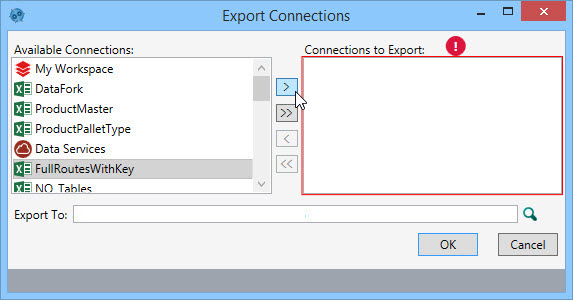
- On the menu bar, select Connections > Export Connections to display the following screen -
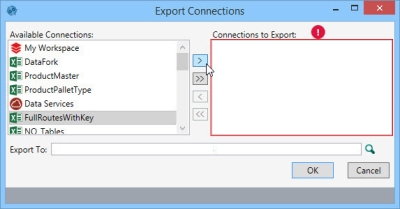
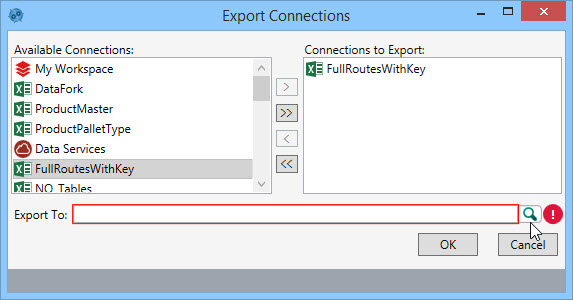
- Use the single right or left arrow icon to move a selected connection to or from the list of connections to be exported; press and hold the Ctrl key to select multiple connections. Use the double right or left arrow icons to move all connections.
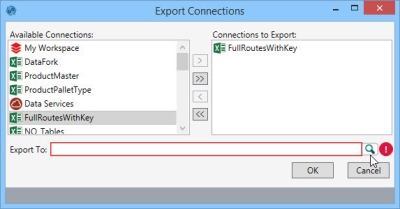
- To specify a file for the exported connection, use the browse icon next to the Export To field to locate a destination, and select an existing export file or specify a new file.

- Click Open, and then click OK on the Export Connections screen.
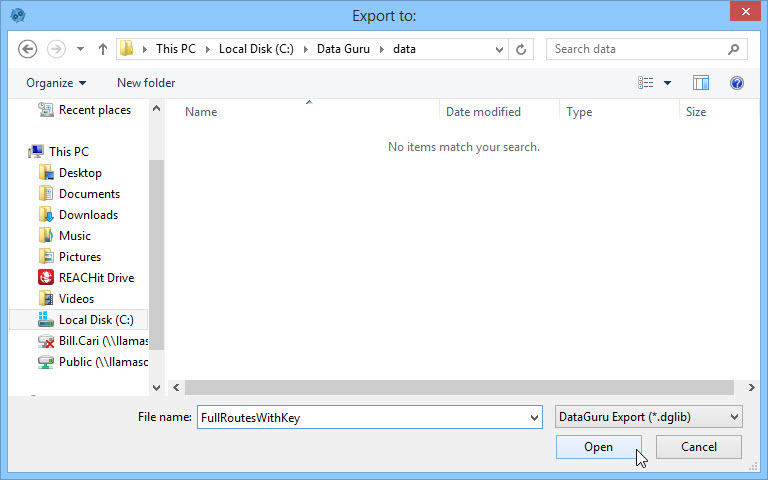
The exported connection is now available, and it can be made available to other users.
Last modified: Thursday December 19, 2024