
Exporting model scenarios to the Supply Chain platform
The Platform Scenarios Export  action allows you to export and upload model scenarios from local database tables to a Supply Chain Guru model on the Supply Chain platform. Before using this action, you must create a Supply Chain Guru Cloud connection of type Coupa Supply Chain.
-
This action updates existing scenarios, scenario items, and filters based on the name of each.
-
If any of the scenarios, scenario items, or filters you are exporting have not already been defined in the model, they are created during the export.
-
This action does not delete existing scenarios, scenario items, or filters. If scenarios, scenario items, or filters exist in the model, but are not in the export tables, they remain as defined in the model.
The records from the 3 input tables are uploaded into the appropriate tables in the model schema in the model on the Supply Chain platform. The scenarios will have scenario items assigned to them in the order specified by the Scenario Item Order. Filters are applied to those scenario items with filters in the input tables.
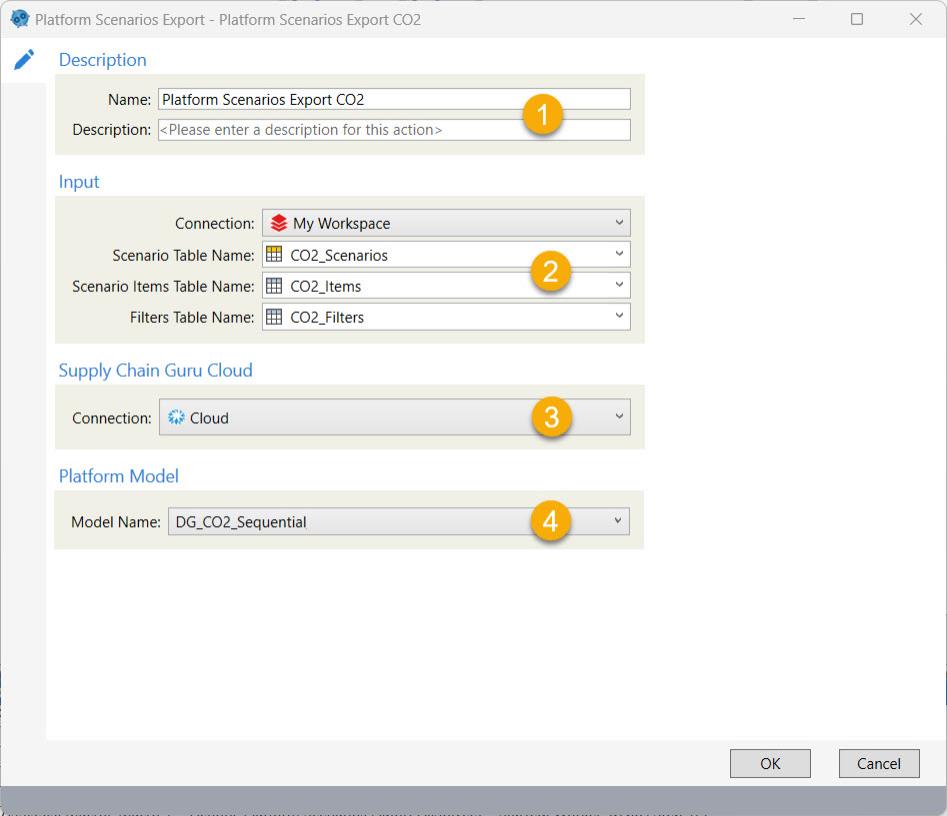
-
Enter a name and description.
-
Select or create input connection and select the 3 tables for export (Scenarios, Scenario Items, Filters).
-
Specify connection to Supply Chain platform.
-
Select platform model.
The most common application is to upload data from a local database to initialize or refresh your data on Supply Chain.
Populating the local scenario tables
The scenario data is populated in 3 separate local tables.
-
Scenario Table Name - This is the table in the local database to which the scenarios are imported.
-
Scenario Items Table Name - This is the table in the local database to which the scenario items are imported.
-
Filters Table Name - This is the table in the local database to which the optional filters for scenario items are imported.
See Scenario definition local tables for additional information about the columns in the tables.
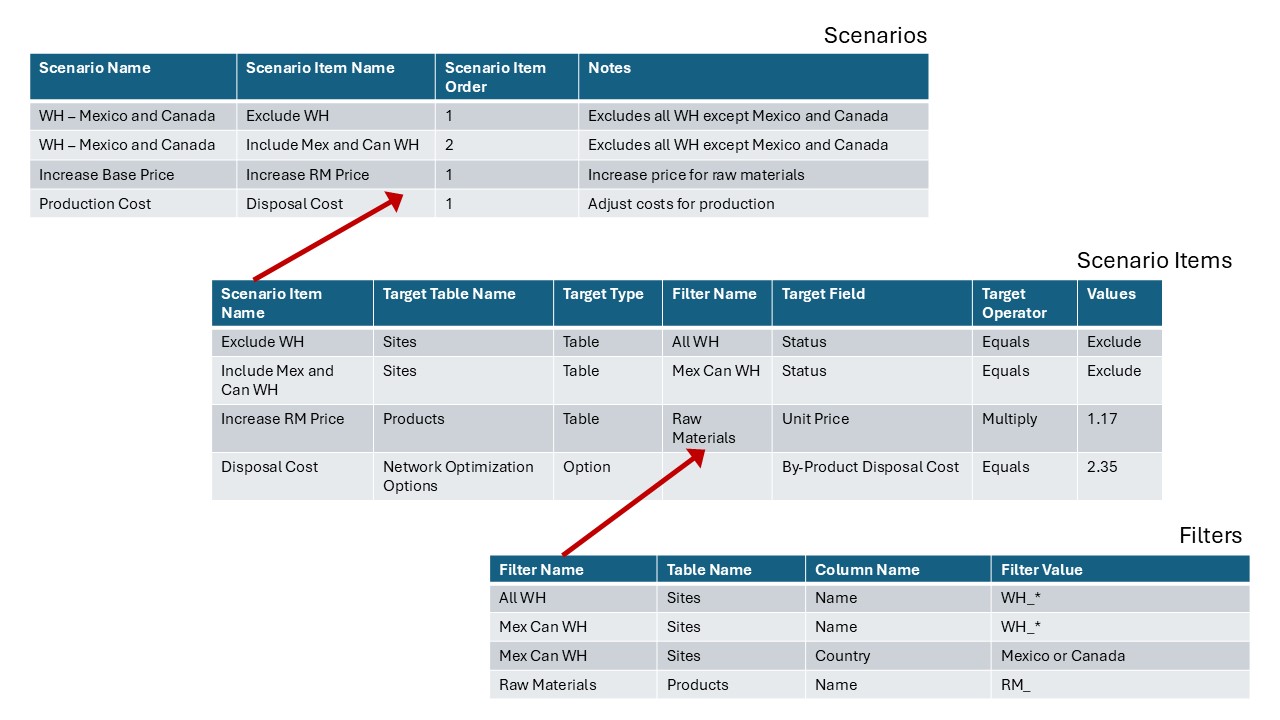
There are relationships between the tables that must be maintained to ensure valid scenarios when exported. The image below shows an example of how the 3 tables may be populated. The arrows indicate the values from one table that correspond to values in another table - Scenario Item Name and Filter Name.
General
-
If you make changes to existing scenarios, scenario items, or filters and upload, the existing definitions in the platform model are replaced with the changes you have uploaded.
-
New scenarios, scenario items, or filters are added to the model when uploaded. The filters will be available in the table for which they are defined, as well as used in the associated scenario item(s). Keep in mind that if you rename an existing scenario, scenario item, or filter, these will be created as new entries in the model.
-
Changes cannot be made to the Baseline scenario through the Data Guru action.
-
If a Scenario Item Name is defined in a scenario record, but is not defined in the Scenario Items table, the scenario is uploaded to the model and you see a warning such as "Ignoring invalid scenario item reference Include Mex and Can WH in scenario WH - Mexico and Canada". Without this scenario item, the scenario behavior may be different than intended.
-
If a Filter Name is defined in a scenario item record, but is not defined in the Filters table, the scenario item is uploaded to the model and you see a warning such as "Ignoring invalid filter reference All WH in scenario item Exclude WH". Without this filter, the scenario item behavior may be different than intended.
-
If a filter is defined using a User Defined column in a table, and the target model for export does not have this column defined, the filter will fail to export. Without this filter, the scenario item behavior may be different than intended.
-
Coupa recommends not using special characters when naming scenarios, scenario items, and filters. In the case of Platform Scenarios Export, do not use the forward slash character (/) in filter names. Updates to filters will fail if the filter name contains one or more forward slashes.
Filters
Filters are optional for scenario items. If you include filters, consider the following:
-
The same filter can be used in multiple scenario items.
-
The filter is identified by Filter Name.
-
For each column that has criteria applied in the filter, there is a unique row. See the "Mex Can WH" filter in the image above.
-
Table Name and Column Name use the display names as you see in Modeler.
-
Do not use the forward slash character (/) in filter names when using Platform Scenarios Export. Updates to filters will fail if the filter name contains one or more forward slashes.
Scenario Items
Scenario items are optional for scenarios (a scenario with no scenario items produces the same results as the Baseline scenario in the model). If you include scenario items, consider the following:
-
The same scenario item can be used in multiple scenarios.
-
The scenario item is identified by Scenario Item Name.
-
Target Table Name and Target Field use the display names as you see in Modeler.
-
The Filter Name in the Scenario Items table must match a Filter Name in the Filters table and must be for the correct table. If it does not match these conditions in the Filters table, the scenario item will be exported, but will not have the filter defined. You see a warning such as "Ignoring invalid filter reference All WH in scenario item Exclude WH". Without this filter, the scenario item behavior may be different than intended.
Scenarios
-
The scenario is identified by Scenario Name.
-
Multiple scenario items can be assigned to a scenario.
-
The order of the scenario items in the scenario determines the order in which they are processed when the scenario is run. You control the order using the Scenario Item Order column.
-
The Scenario Item Name in the Scenarios table must match a Scenario Item Name in the Scenario Items table. If it does not match this condition in the Scenario Items table, the scenario will be exported, but will not have the scenario item defined. You see a warning such as "Ignoring invalid scenario item reference Include Mex and Can WH in scenario WH - Mexico and Canada". Without this scenario item, the scenario behavior may be different than intended.
Last modified: Thursday December 19, 2024